
Close Menu
Digpu News  Agency Feed
    Facebook X (Twitter) Instagram
    • Home
    • Technology
    • USA
    • Business
    • Education
    • Startups and Entrepreneurs
    • Health
    Facebook X (Twitter) Instagram
    Digpu News  Agency Feed
    Subscribe
    Thursday, January 1
    • Home
    • Technology
    • USA
    • Business
    • Education
    • Startups and Entrepreneurs
    • Health
    Digpu News  Agency Feed
    Home»Lifestyle»How to Open Specific iMessage Chat from iPhone Lock Screen
    Lifestyle

    How to Open Specific iMessage Chat from iPhone Lock Screen

    DeskBy DeskJuly 23, 2025Updated:July 25, 2025No Comments2 Mins Read
    Share Facebook Twitter Pinterest Copy Link LinkedIn Tumblr Email VKontakte Telegram
    Share
    Facebook Twitter Pinterest Email Copy Link

    iOS 18.4 has landed with several noteworthy features. But if you think that you’ve unlocked all its goodies, it’s time to look deeper. Thanks to the addition of a hidden shortcut action, you can now open a specific iMessage chat right from your iPhone Lock Screen. You’ll no longer need to launch the Messages app to view your recent threads. Here’s how it works.

    Create iMessage Shortcut Action on iPhone

    Time needed: 1 minute

    It’s worth pointing out that setting up the iMessage shortcut action requires the Apple Shortcuts app. Therefore, make sure the app is available on your device. If it’s not there, install it from the App Store. Bother not, it’s available for free.

    1. To get going, launch the Apple Shortcuts app on your iPhone running iOS 18.4 or later.
    2. Now, tap the + button at the upper-right corner of the screen.

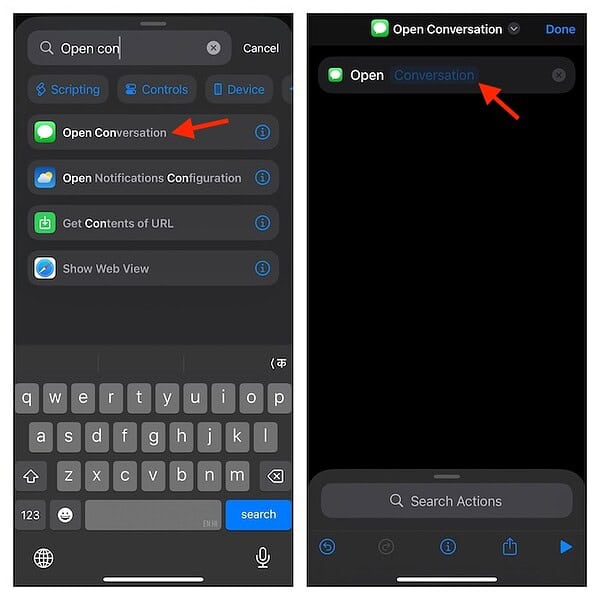
    3. Next, enter Open Conversation in the Search Action field and select it from the search result.
    4. Next up, tap the Conversation label.

    5. Up next, choose the preferred iMessage chat in the drop-down menu.
    6. Finally, tap the Done button at the top right to confirm your selection.

      Choose an iMessage conversation thread

      Choose an iMessage conversation thread

    Add iMessage Shortcut Action to Your iPhone Lock Screen

    1. Bring up the Lock Screen on your iPhone (press the Side button) and authenticate using Face ID or Touch ID.
    2. Long-press on the screen to reveal the wallpaper gallery and tap the Customize button.
    3. Choose Lock Screen.
    4. After that, tap the minus icon on the Control you want to remove. I’m going to get rid of the flashlight icon.
    5. Then, tap the + button.
    6. Scroll down to the Shortcuts section and choose Shortcut.
    7. In the Shortcuts menu, tap Choose and select Open Conversation.
    8. Tap the empty space outside of the menu to get out of it.
    9. In the end, hit the Done button at the top right to finish, and you are all set.

    Open Your Favorite iMessage Chat from the Lock Screen on iPhone

    Once you have added the Messages shortcut to the Lock Screen, you can launch the preferred chat thread with ease.

    1. Just activate the Lock Screen > Authenticate using Face ID/Touch ID.
    2. Long-press on the Messages icon and Voila!
    3. You will be directed straight to your selected conversation thread. Pretty cool, isn’t it?

    Source: The Mac Observer / Digpu NewsTex

    Share. Facebook Twitter Pinterest LinkedIn Tumblr Email Telegram Copy Link
    Previous ArticleHow to Produce a Hit TV Show and Save the Environment at the Same Time
    Next Article ‘The Golden Bachelor’ Renewed for Season 2, Led by NFL Vet Mel Owens

    Related Posts

    Business

    Sportswear Fabrics and India’s Challenge

    September 26, 2025
    Read more
    Culture

    Leeds targets attacking reinforcements to stay in Premier League

    September 26, 2025
    Read more
    Auto Tech

    Oura Ring vs Apple Watch (2025): Features, Accuracy, & Value Compared

    September 26, 2025
    Read more
    Cricket

    Asia Cup 2025 Final: Shoaib Akhtar’s ‘Aura’ message raises questions about Pakistan’s strategy against India

    September 26, 2025
    Read more
    Cricket

    India star pacer fires back at Mohammad Kaif on workload criticism: ‘Inaccurate again’

    September 26, 2025
    Read more
    Cricket

    India vs Sri Lanka Playing 11: Will Rinku Singh replace Tilak Varma in Asia Cup 2025 Super 4 clash?

    September 26, 2025
    Read more
    © 2026 ThemeSphere. Designed by ThemeSphere.
    • Home
    • About
    • Team
    • World
    • Buy now!

    Type above and press Enter to search. Press Esc to cancel.